Quick Start
Before starting, complete installation and provider configuration.
Use SRHarness to discover a known equation
SRHarness provides a convenient test command that synthesizes data from a specified formula and checks whether the Agent can recover that formula from the data.
The following example generates data with three columns, x1, x2, and y, where the target variable y satisfies
Tip
Before running the command, configure the API key required by --llm-provider. The example below uses OpenRouter and therefore requires OPENROUTER_API_KEY. If you configured a different provider, update both --llm-provider and --llm-model accordingly.
Then start the Agent with a small search budget:
sr-harness synthetic \
  --equation 'y = 1 + x1 ** 2 + 2 * x1 * x2' \
  --n-samples 200 \
  --x-low -2 \
  --x-high 2 \
  --seed 42 \
  --llm-provider openrouter \
  --llm-model deepseek/deepseek-v4-flash-0731 \
  --save-path ./logs/quick-start \
  -R 1 -C 1 -L 10 -K 1
| Option | Meaning |
|---|---|
-R |
Number of restart loops |
-C |
Independent conversations per restart |
-L |
Maximum refinement depth per conversation |
-K |
Model samples at each step |
Run artifacts are written below --save-path. Common files are listed below:
| File | Contents |
|---|---|
run.json |
Unique run identifier, startup arguments, and Agent configuration |
nodes.jsonl |
Conversation nodes created during the search and the relationships between them |
result.json |
Formulas explored by the Agent, including the candidates that form the Pareto Front and the best result |
response.jsonl |
Raw model responses, token usage, and cost accounting |
tool_calls.jsonl |
Tool-call records |
Use the WebUI workbench
SRHarness provides an interactive WebUI workbench for preparing data, configuring a task, and running a symbolic-regression search in the browser.
The following command starts the WebUI locally on port 8000 and stores persistent workspaces and run records in ./workspaces and ./logs/webui, respectively:
sr-harness run \
  --host 127.0.0.1 \
  --port 8000 \
  --workspace-dir ./workspaces \
  --save-path ./logs/webui
Open http://127.0.0.1:8000/ in a browser and follow the page through these three stages:
- Data preparation: upload data (or use one of the provided sample datasets), and ask the in-page Agent to clean, extend, or inspect it when needed.
- Task setup: assign variable roles, edit the variable and problem descriptions, and select or define an evaluation scheme.
- Symbolic regression: start the symbolic search and return to the first two stages when variables need to be extended or the evaluation scheme needs to change.
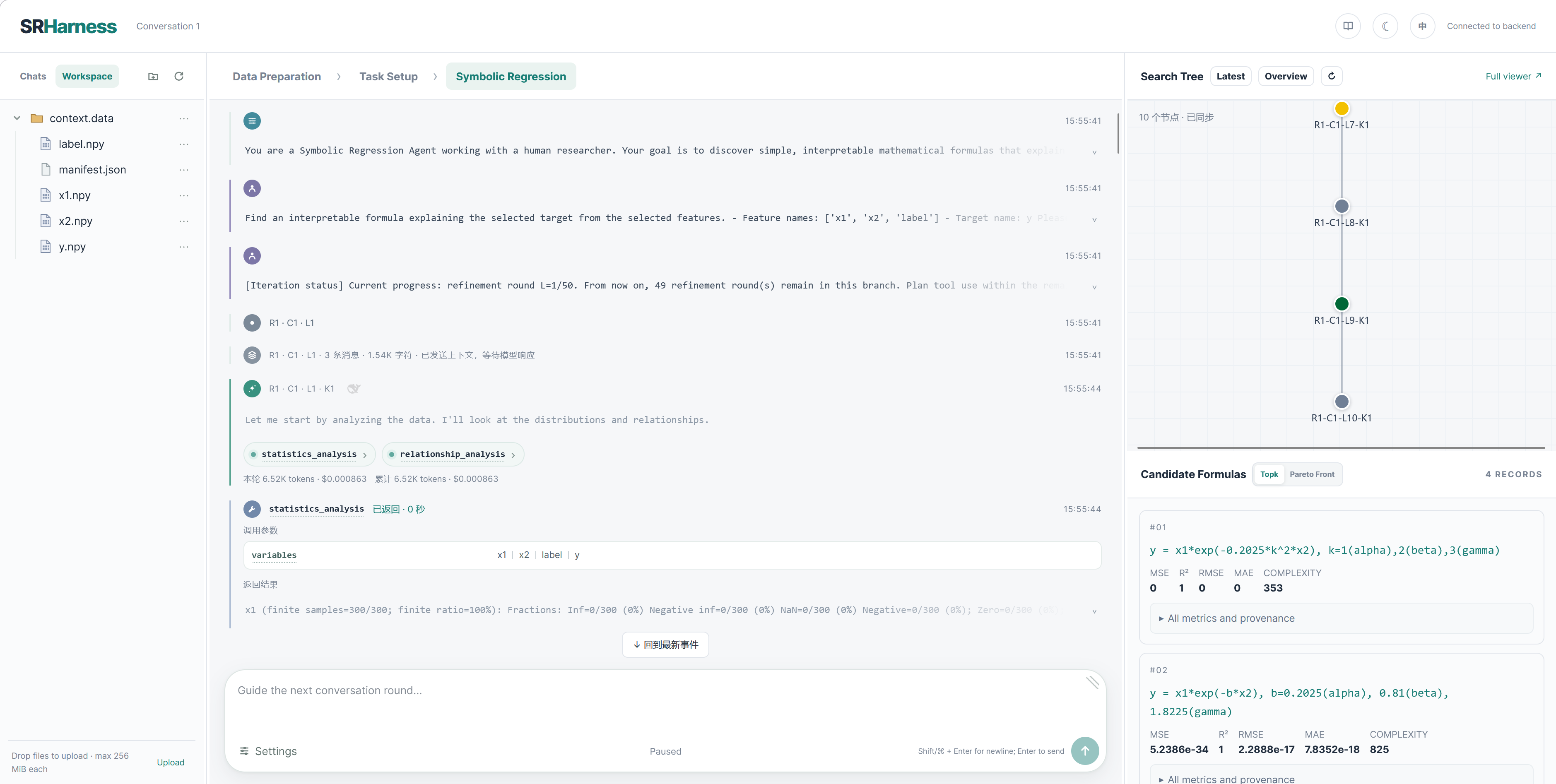
See SRHarness WebUI for complete operating instructions.
Mount read-only inputs
For large datasets, use --mount to mount local data into the workspace:
Mounted data appears as read-only links in every conversation workspace. This prevents Agents from modifying the source data and avoids consuming additional disk space by copying it. If multiple files or directories are mounted, their names must not conflict.
Use the hosted WebUI workbench
If you prefer not to deploy SRHarness locally, you can use our hosted WebUI workbench to try the data-preparation, task-setup, and symbolic-regression workflow directly in your browser.